

Manage your staff research profile
In this guide
- Register for t4 access
- Guides for managing your web profile
- Get support: Common issues and steps to resolve them
1. Register for t4 access
Add more detail and depth to your website profile using t4.
Before you register: Review the training and support included in this guide, you will need to refer to it later.
2. Guides for managing your staff research profile
Working in t4
There is a PDF version of the t4 training you can use as an additional reference: Updating a staff research profile
Logging into t4
Logging into t4
There are a few ways to log-in to t4 and edit your web profile.
Recommended: log-in from the web page which displays your web profile.
This involves:
1. Use a search (either in your browswer or the University website serch) to locate your web page
- If you are on a research and teaching contract, you will already have a staff research profile published.
- To access t4 from your live page, first navigate to your staff research profile on the University of Glasgow website.
If you don’t already know where your profile is, you can:
- navigate to your profile via your School webpages.
search for yourself using the search bar - type your name (adding the word Glasgow may help) into a search engine and see if your profile is listed (typically your profile will rank highly in a search)
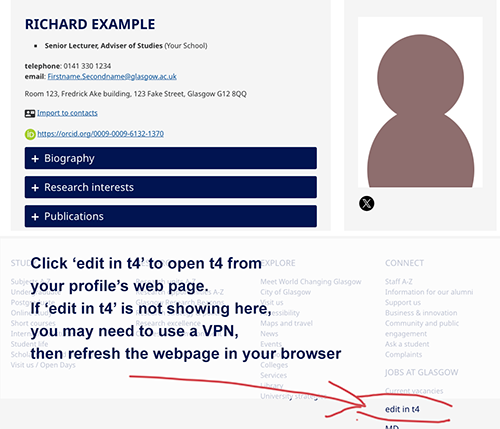
2. Scroll down to the footer of the page and click 'edit in t4'
- Don't see this 'edit in t4' link? You may need to connect to campus systems using a VPN.
- Once reconnected, refresh the web profile page in your browser.
- Hopefully the 'edit in t4' link will now show.
3. t4 login screen: Enter your GUID and password
- Can't see the t4 login page? You may need to connect to campus systems using a VPN.
Use the general link for accessing t4:
Opening the t4 profile template
Opening your t4 profile template
When t4 opens, you should notice that the Content tab of your profile template is shown by default. If not, click on this Content tab.
- You should notice one item of content, this will be named: your name.
Click this link in the Content tab (your name)
- This will open the t4 template content editor for your web profile (below)
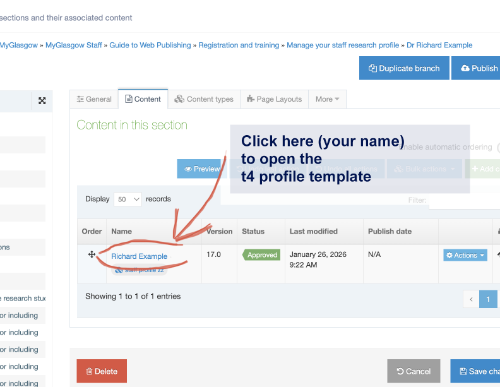
This will open the content editor for your t4 profile template, (below)
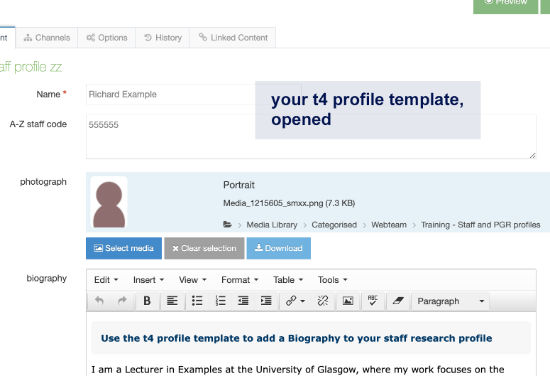
Using the t4 profile template
This is a guide to the fields you'll find in the t4 template, with advice on what to do (or don't do).
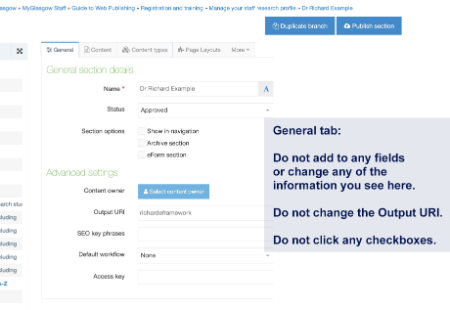
Tabs: General
- Do not add to any fields or change any of the information you find here.
- Do not change the Output URI as this will create a hidden second version of your profile webpage on the live website.
- Do not click any checkboxes.
'Content' is only tab you need to use to make edits to your profile.
Tabs: Content
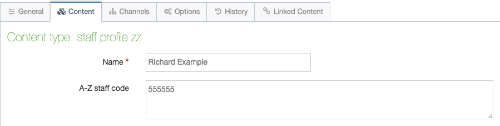
Name and A-Z staff code
These fields are already completed, do not change or delete the information that is already there.
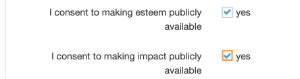
Checkboxes: Consent to publish Enlighten data (Esteem, Impact)
You only need to do this once.
It's recommended to do this the first time you open the t4 template (remember to 'Save and Approve' after you have checked them.)
Important: there are also privacy settings in Enlighten for Esteem, so make sure to turn off any privacy settings in Esteem as these will override the permission settings in the t4 template.
Click the checkboxes to give consent to publish data from:
- Enlighten (Esteem) on your profile (creates a Professional Activities and Recognition accordion on your profile web page)
- Enlighten (Impact) on your profile (creates an External Engagement accordion on your profile web page)
Image: Permissions on (profile will display your Esteem or Impact data held in Enlighten)
BlueSky and X fields
You can add icons that link to your social media channels.
BlueSky format: https://bsky.app/profile/yourusername.bsky.social
X (formally Twitter) format: @yourhandle

Prior Publications permission checkbox
Ensure the 'show prior publications' permissions checkbox is on.

Always remember to Save and Approve
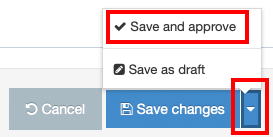
Preview, then 'Save and approve' your edits in t4
Previewing updates in t4
You can preview your changes before or after saving them by selecting the Preview.
Publishing updates to the website
Important: 'Save and approve' is the only save option in t4 that will make your updates publish and appear on the website. Be aware this is not the default option.
This is the save option to choose if you are ready for you work to appear on the website.
How to select 'Save and approve'
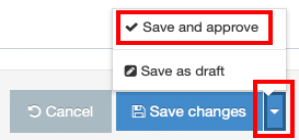
- Scroll to the bottom of the t4 template you are working on.
- You will see the blue button labelled 'Save changes'. But don't select this option.
- Instead, select the small triangle icon next to 'Save changes'. This reveals two other options.
- Select: 'Save and approve'
- You will be returned to the 'Content in this section' view: the Status of the content item you just edited will appear as Approved.
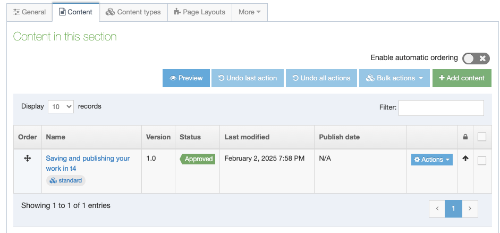
Save and approve: there is still a delay to updates appearing on the website
Your updates won't publish to the University website (www.glasgow.ac.uk/eg/yourupdatedpage) immediately, even with Save and approve.
- 'Approved' content will be scheduled to publish to the live University website once a day (around 1am).
How to update personal details and contact information
The information appearing in this part of your staff research profile is managed in the HR System.
Updating this information on your profile does not involve the use of t4. Any exceptions, such as adding your profile photo, are specified below.
Name and title
Where is this information managed?
- People & Organisational Development (HR system)
How to update
- Use the People and Organisational Development Helpdesk to notify them of the change request and follow their instructions.
- Get confirmation from People and Organisational Development that their update is complete
Profile portrait photo (you add this using t4)
Upload your photo to the Media Library
You need to upload your profile image to t4 using the Media Library. We recommend your profile image be 300 pixels wide.
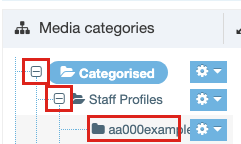
1: Find your folder in the Media Library
- From the navigation menu, choose 'Content > Media Library'
- Open Categorised using [+]
- Then open Staff profiles using [+]
- Then click on the folder: [Your GUID]
- Click: + Add media
2: Upload your photo
- Drag and drop your image file, or click to locate and select the image file you want to upload
3. Fill out the following boxes and leave the rest blank:
- Type: In most cases, this will be chosen for you. If not, select the associated file type from the text links. Please contact the webteam if you wish to upload a file type not listed.
- Name: Insert your first name and surname (this would be the appropriate text for your portrait image)
- Description: Insert your first name and surname (this would be the appropriate text for your portrait image)
Note about Description field and Alt text
- Text inserted in 'description' is used to describe the file within the final published web page.
- In the case of .jpg and .gif image files, this text is displayed in the browser when a visitor hovers over the image with their cursor.
- The text in this 'description' field also forms the alternative text or "Alt tag" description that visitors using assistive browsing technology will have read out to them.
- For example, the descriptive text associated with an image allows meaning to be conveyed to a visually impaired person.
4. Select Save changes to upload the file to the media library.
Adding the photo to your web profile
Once you’ve added your photo to the Media Library, you can insert it using the ‘photograph’ field in your profile template.
- Edit your profile content in t4 (Open your t4 profile template)
- Click the ‘Select media’ button from the photograph field
- Work down the Media Library folder structure by clicking on the [+] symbol
- Media Library » Categorised » Staff profiles» Your GUID: You have to click on your GUID media folder icon before the upload media button will work.
- Select your profile picture
- Select your photo by clicking on it, or on the name of the file (blue text)
To complete this task
- Preview your web profile
- Save and approve
Job title (and Organisational unit)
Where is this information stored and maintained?
- (HR system: People & Organisational Development)
How to update
- Corrections must be made by your Head of School via the People and Organisational Development Helpdesk
- This process should alert People & Organisational Development and initiate the to the change to the job title in their system
Use the People and Organisational Development Helpdesk if you believe your job title has been formally updated but the change doesn't appear on your web profile.
Organisational unit
An organisational unit (it could be a School, Service or project) is displayed on your web profile alongside your Job title. The organisational unit that displays is the one assigned to you on the HR System. The process for enquiring about a change to this is the same as for your job title. It is assigned to based on where the budget for your post is managed, so a change may not be possible.
Where is this information managed?
- IT Services
How to update
- A change to your email address would have to follow a change to other personal details (Name) arranged through People & Organisational Development Helpdesk (and this change updating on the HR System).
- A request should be submitted to IT helpdesk for an email change.
Telephone or Address (Internal)
Where is this information managed?
- People & Organisational Development (HR system)
How to update
Telephone
- Open HR Self Service (Employee Dashboard)
- Go to: My Profile (To find this: Click on the round icon showing either your initials or your photograph)
- Contacts: 'Telephone work'
- Logout of HR Self Service
Address (Internal)
- Open HR Self Service (Employee Dashboard)
- Go to: My Profile (To find this: Click on the round icon showing either your initials or your photograph)
- Employee Detail, Contacts, 'Work address 1'
- Logout of HR Self Service
Pronouns
Where is this information stored and maintained?
- People & Organisational Development (HR Self Service)
How to update
- Open HR Self Service (Employee Dashboard)
- Go to: My Profile (Click on the round icon showing either your initials or your photograph)
- Diversity, Background, 'Pronouns (Optional)'
- Logout of HR Self Service
ORCID
Where is this managed?
- Enlighten
How to add
There is no t4 step. If you have an ORCID connected to your Enlighten account, the ORCID link will show on your web profile.
Using an ORCID (Open Researcher and Contributor ID) identifier allows you to be uniquely identified and connected with your research activities. Your ORCID will follow you throughout your career and can be linked to your outputs, research funding and other research-related activities.
Enlighten: Create and/or connect your ORCID with Enlighten
- Use the guide at: Manage your ORCID
- More information about ORCID: orcid.org/
How to update the profile sections (accordions)
Many of these sections only appear on your profile webpage once you add content to the corresponding field in the t4 profile template.
There are a few exceptions to this. For example, prior to using t4, the Publications and Supervision sections may already display on your profile webpage.
Biography and/or Research interests
Adding a Biography and/or Research interests
- Log in to t4
- Open your web profile template
- Add your text to the Biography and/or Research Summary field in the t4 web profile template
- Preview your web profile
- Save and approve
You can complete both the Biography and Research Interests fields. Or you may choose to include a short biography in the Research Summary and use that field only.
These fields are where you could add:
- Links to other webpages which give a profile of your research: for example, a personal website or Google Scholar.
- Information about your current research interests, projects and activities, including links to any relevant websites.
- Information about your current research collaborations, including links to any relevant websites: these could include centres, networks, partners related to your work.
Advice for formatting your research interests:
- Include a bullet list with a concise list of the areas you specialise in.
- It’s good practice to separate the different sections of your information with headings. Use Header 3 for the first-level of any subheadings you use.
- Use Section links when you are linking to other webpages within the University of Glasgow website
Publications
Where is this managed?
- Enlighten (Library)
How to update?
- You can’t edit your Publications accordion directly in t4.
- This applies to the list of publications, the sub-categories, and the structure of the list, as well as any of the details that appear about individual publications.
- The ‘Publications’ accordion section, and its header, won’t appear on your staff research profile if you have no records in Enlighten.
If you think a list of publications should be appearing on your profile but isn’t, contact: research-enlighten@glasgow.ac.uk
Publications can take over a week to appear on the website
You can check with the Enlighten team about the progress of a publication if it hasn't appeared on your profile a week after deposit. research-enlighten@glasgow.ac.uk
Prior publications: displaying publications from your time at previous institutions
Up until May 2024, prior publications were directly uploaded to Enlighten by library colleagues. These records remain in Enlighten and are not affected by the change to this process.
If you are new to the University, your publications from previous institutions will be displayed on your web profile.
Publications will display, under ‘prior publications’ if
- they appear in your ORCiD, and
- your ORCiD is linked to your Enlighten account.
See: Managing your ORCID
Removing the ‘prior publications’ list
You can also stop this list from appearing on your website profile.
This is a t4 step to complete in your t4 profile template
- Login to your t4 profile template
- Uncheck the “Show prior publications” box
- Save and approve

Help and support
- Website: Enlighten
- Contact: research-enlighten@glasgow.ac.uk
- Access your Enlighten account (log-in required): http://eprints.gla.ac.uk
Professional activities and recognition
Where is this information managed?
- Enlighten (Esteem)
Esteem data (part of Enlighten) can be added to your web profile page. It will appear as an accordion section titled: Professional activities and recognition. This accordion can contain a number of sub-categories, if they have been completed in Esteem.
Sub-catergories for Professional Activities and Recognition
- Editorial Boards
- Grant Committees
- Professional & Learned Societies
- Research Fellowships
- Prizes, Awards, Distinctions
- Selected International Presentation
- Other
How to update
There are two steps and these can be completed in any order:
A t4 profile template step:
In your t4 profile template, make sure the checkbox is ticked to ensure Esteem information can be published.

An Enlighten (Esteem) step:
- Add some information into Esteem in Enlighten: How to add Esteem data
Esteem content is set to public in Enlighten by default unless you tick the “Private?” box in the right-hand column. But if something is marked private in Enlighten, this will override the consent you give in t4 and that item of content will not appear on your profile. 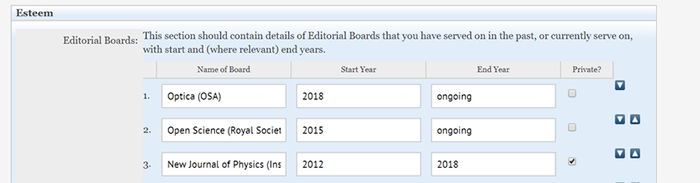
Permissions checker: display Esteem information on your web profile
| Esteem. Private? checkbox (one per item) | t4 (one checkbox for all items) | Will Esteem display on website profile? |
|---|---|---|
| Unticked (default) | Unticked (default) | No |
| Unticked (default) | Ticked (t4 step) | Yes |
| Ticked (Esteem step) | Unticked (default) | No |
| Ticked (Esteem step) | Ticked (t4 step) | No |
Research datasets
Where is this managed?
- Enlighten (Research Data)
How to add this information
If you have Open Access Data stored with Enlighten, it is possible for this to display on your web profile within a 'Research Datasets' accordion section.
t4 steps: There are no t4 steps required.
For more information or to make an enquiry, visit:
Grants
Grants (Arts and Humanities, Social Sciences, Science and Engineering only)
You need to add these directly into the 'Grants' field within the t4 template.
Type in your recent grants (grant title, funder, start and end dates) in chronological order. You may wish to include the amount of the grant.
Tip: Select 'paste as text' when pasting text from other files into your t4 profile template. (for example: Word or Excel) This will make sure that the text displays correctly when it is published on the website.
Grants (MVLS)
For MVLS colleagues, your grants should appear on your profile automatically. They are currently managed and updated on an MVLS-hosted research system.
Do not add these into t4 manually. There is no field in the t4 MVLS profile template for this information.
For updates or amendments to the grant information that appears on your staff research profile, contact the MVLS Policy & Business Intelligence team.
Teaching
This should include information about the courses you teach and any teaching responsibilities you have.
Supervision (Current PGR students)
Where is this information managed?
- MyCampus
How to add
- Do not add this information directly into t4. Students need to give their explicit consent for you to list them on your profile and this is managed for you when they register for their own PGR Student Profile.
A PGR student you currently supervise can appear automatically in your Supervision section.
This will display:
- their name
- project title
- a link to their PGR web profile
The two conditions required for a PGR student to be listed on your profile:
- The student has set up their own PGR website profile. This provides and stores the explicit consent for the use of their information for this purpose.
- You are assigned as one of their supervisors in MyCampus.
Steps to take when they do not appear on your profile
- Check with the student to see if they have registered for a website profile; or if they are aware of the option to register for a website profile. (It is their choice to register or not.)
If they confirm they have a PGR web profile but their details still don't appear on your website profile:
- Contact your School's MyCampus Administrator. The information stored in MyCampus may need correcting or updating.
Supervision: information you can add using t4
Areas of interest for PhD supervision
You can use the 'Supervision' field in the t4 template to add:
- an introduction and invitation to students to contact you about supervision
- an outline of possible specialisms and projects you would consider supervising
Example: ‘I welcome enquiries to supervise research students with interests in:’
Past PhD supervisions
Important: To comply with data protection laws, make sure former students give their explicit consent for you to list them on your profile.
3. Get support: Common profile issues and steps to resolve them
Can't access t4: Do you need to set-up and use a VPN?
If you are not logged in directly via the University's network, you will need to use the VPN to access t4. You will also need to authenticate using single-sign-in verification.
- Set up: VPN (Virtual Private Network)
Can't access t4: have you registered for t4 access to your web profile?
You need to register for access to edit your web profile in t4. This applies even if you have a t4 account that you use to access and manage other University webpages.
My title shows Dr but i am now Professor; or Ms, Mr, Mrs, Miss but I am now Dr.
The change needs to be complete in the HR System. Get confirmation from People and Organisational Development that this process has been completed. Any update should then display correctly on your profile.
My t4 edits aren't updating my live website profile (even when I check the following day): Use Save and Approve
Make sure you select Save and approve when you save your edits in your t4 profile template (rather than clicking the default Save changes).
The Save and approve option can be easy to miss.
When using t4, I can't find or edit the information I see on my profile
Certain information displayed on your staff research profile is stored on other information systems. You won't find it in your t4 profile template or be able to update it there.
This includes:
Supervision: PGR student(s) I supervise not showing on my web profile
PGR students need to register for their own PGR student web profile in order for this information to appear on your profile.
By registering for their PGR profile, they give consent for their name, and a link to their profile, to appear on your website profile.
What to do: Ask the student if have their own PGR student profile (or check: a search for their name should show if they have a web page). If they do, then contact your School's PGR Administrator if you think you should be listed as their Supervisor (in MyCampus) or want to check this.
There is further information in a previous part of this guide: Supervision: Current PGR students.
Missing publications (or Publications section)
You should deposit any publications through Enlighten
They should then appear on your profile.
Be aware if you also have a PGR web profile
If you have a staff account for Enlighten, this will be a separate account to your PGR account, and may affect which publications appear on either profile.
You may find some Publications appear on one web profile and not the other.
Our recommendation is to focus on your PGR web profile while you remain a student. This means you may have to make a request to Enlighten that a publication is credited to you in both of your Enlighten accounts.
My profile page previously appeared on the website, but the link I use now goes to a 'not found' page
To resolve this contact:
In most cases this happens when the 'Output URI' for the profile section in t4 is changed from the default.
Don't change the default Output URI for your profile in t4.
I am unable to upload or resize my profile picture (or another image)
Refer to our guides for:
- adding images in t4: includes advice about image quality and making sure images meet accessibility requirements (Alt-Text)
- resizing images using Paint.net (available download from IT Services Software Centre)
Help and support contacts
Issues with your:
- Personal details and contact information: POD Helpdesk Request
- Supervision (Current PGRs): Your School's PGR Administrator (This is MyCampus information)
- Publications (and ORCID): Enlighten
General web support and t4-related issues
Review the support guides and information on this webpage, if you are still unsure contact: