

MyGrades (BETA)
MyGrades is a new part of Moodle which will allow you to quickly and easily access your grades for each of your credit-bearing courses in one place.
MyGrades will also allow you to more easily manage your workload by being able to see at a glance what assessments you have coming up in the next 24 hours, one week, and one month.
Your most authoritative source of information will always be your course handbook, so we recommend that you confirm that handbooks and MyGrades contain the same deadlines, then you can use MyGrades as a central reminder of all deadlines for all your courses.
If you find any discrepancies, contact your course lecturer or administrator who will be able to update Moodle appropriately.
Advice on general use of Moodle: Moodle basics for UofG students
| Implementation date |
September 2024
|
| Last edited |
March 2026
|
| Owner |
SLD + The Transformation Team
|
| Date of next review |
March 2027 |
Using MyGrades
How do I use MyGrades?
Use it as an overview of all your course grades in one easy place, with links to each assignment and any feedback.
Accessing MyGrades
In Moodle, click 'MyGrades (BETA)' at the top:

Inside are three components: a pie chart, a bar chart, and a table of your courses and assessment details. (See 'What do the visuals mean?', below.)
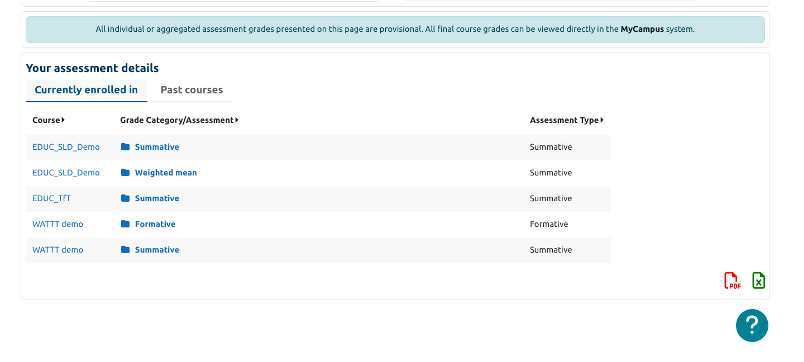
(Note: clicking the name of the course in the first 'Course' column will take you directly to that Moodle course and you will leave the MyGrades dashboard.)
To access each assessment's details, click the relevant item in the second column, headed ‘Grade Category/Assessment’
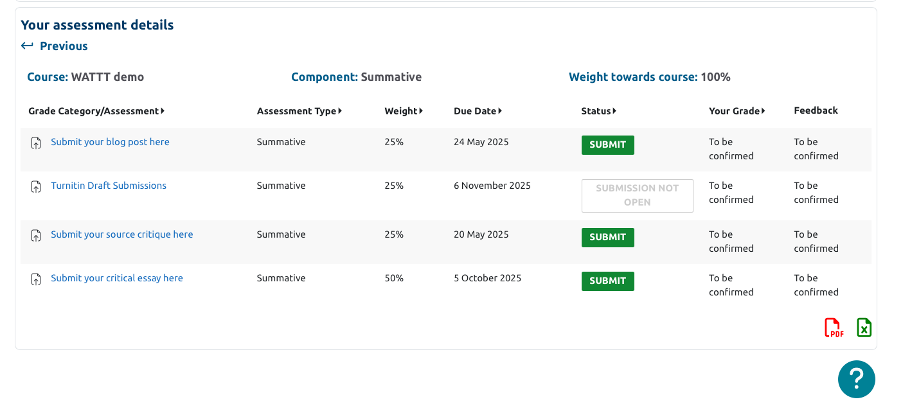
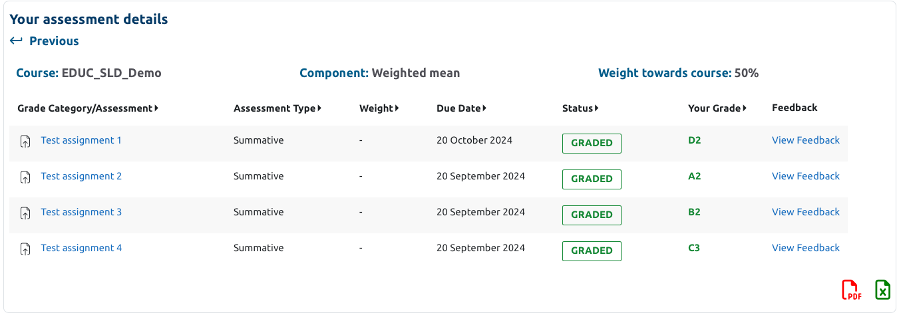
You will see a full breakdown of each gradable Moodle activity, including:
- what has / has not been submitted, including overdue status
- what has been graded
- item weighting
- grades
- feedback status
Before submissions and grading:
After submissions and grading:
Click the PDF or the Excel icon at the bottom right of the table to download a copy of your information.
Click the question mark in the blue circle at the bottom right of the page to return to this guide.
Can I use my browser's navigation buttons?
No - MyGrades loads within one page, and the information you see changes based on your selections.
Navigate within the MyGrades dashboard.
To return from any other Moodle page, click the 'MyGrades (BETA)' at the top of the window.
What do the interactive visuals mean?
The pie chart is your 'assessments overview'. It shows how many assessments you still have to submit, how many are overdue, how many have been submitted, and how many have been graded. When you hover over the pie chart segments, detailed information will appear as a pop up.
The bar chart allows you to see 'assessments due in the next' 24 hours, 7 days, and 1 month. The number of assessments in each category is indicated along the bottom.
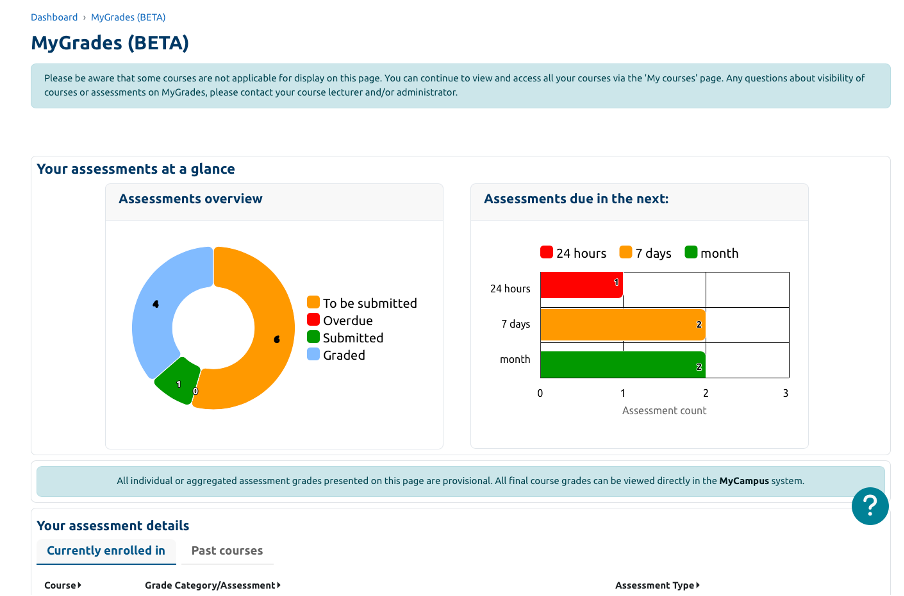
Each of the individual components in the pie chart and bar chart can be clicked. For example, click 'To be submitted' on the pie chart, and the table below will filter and only show you those assessments that still need submitted. Select the '7 days' option on the bar chart, and the table below will show you all assignments due in the next 7 days.
To return to the full view, click ‘Back to assessment details’ at the top of the table:

What do the column names mean?
Course: The short course code for your Moodle site. See the fuller explanation.
Grade Category/Assessment: This shows the gradable assessments on your course.
Assessment type: Summative or formative. See the fuller explanation.
Weight: How much an assessment contributes to your final course grade.
Status: Whether you need to still submit work, whether the assessment is open yet, whether it has been graded and whether your feedback and grade are available.
What do my course names mean?
These correspond to the short course names used in MyCampus.
If you’re not sure, you can click on the course name and it will take you directly to the Moodle site for that course.
Some courses might not follow the correct naming convention yet. We are working to standardise this across the university.
What does 'weight' mean?
How much a particular assessment contributes towards your final course grade.
Weights shown for all your summative assessments should add up to 100% within each Course.
For example, you could be asked to deliver a presentation worth 10%, an essay worth 40%, and a final exam worth 50%. All of these together add up to 100%, and the percentage of each individual component shows how much each separate grade will contribute add towards your final overall Course grade.
For a detailed illustration of how weights are used to calculate overall grades, see the Guide to the Code of Assessment, sections 2.3 ('Aggregation of assessment across a course') and 2.4 ('Aggregation of assessment across a programme').
What do 'formative' and 'summative' mean?
'Formative' means 'assessed without contributing to your final Course grade'.
Formative activities are designed to supplement your learning and allow you to get feedback on your current work, which you can use towards improving your future work.
You can think of formative in the same sense as 'forming your approach to your work'.
'Summative' means 'assessed in a way that does contribute to your final Course grade'.
Each of these assessments will have their own specific weighting.
You can think of summative in the same sense as 'summing up' or being 'in summation'.
What if MyGrades doesn’t show my assessment as either formative or summative?
While we are moving to standardise our terminology across the University inside MyGrades, some courses will have provided information on which assessments are summative and which are formative, and others might not have entered these yet.
In the meantime, your course handbook or your course staff will be able to resolve any questions about which assessments are summative and which, if any, are formative.
What does the phrase ‘all individual or aggregated grades on this page are provisional’ mean?
All grades on Moodle are provisional until ratified by an exam board. Your final course grade can be found on MyCampus.
For a more detailed specific overview of how assessment works, see the Code of Assessment from §16.1 to §16.4.
§16.2 of the Code says that every School at the University will publish their own assessment scheme. This will usually be available in your Course handbook and/or Moodle page.
The Code then goes on to say:
16.4: The scheme shall describe how candidates will receive feedback to guide their subsequent learning. That feedback may include the results of summative assessment. Where these are provided they will be provisional until they are confirmed or amended by the appropriate Board of Examiners.
What if my course uses an open submission window?
MyGrades will only reflect the final deadline at the end of the window.
For example, if the submission window is open for two weeks from 1 November to 14 November, the due date will be shown in MyGrades simply as 14 November.
Check your individual course Moodle pages to see if your course lecturers or administrators have any further instructions.
Do I need to tell MyGrades which courses I’m currently enrolled in?
No - the 'Currently enrolled in' tab will automatically show you the assessment details for your Courses after you have successfully been enrolled on their Moodles.
If you change courses, you will see the details on your new course after you have been enrolled on the relevant Moodle. If you continue to see details of assessments for the course you have left, this is simply because you are still enrolled on the old Moodle.
For any questions about course visibility or assessments on MyGrades, or for help in unenrolling from courses that you have formally dropped from your timetable, contact your course lecturer and/or administrator.
Deadlines, Extensions, and Extenuating Circumstances
If I complete an assignment before the deadline, will the graphics update?
Yes, once your assignment has been submitted, the status will change and will move to the next section of the marking workflow (i.e. to be submitted > submitted > graded).
Will exams show in MyGrades?
Some assessments are not applicable to display on MyGrades, or may appear or be updated at a later stage.
You can continue to view and access all your courses via the 'My courses' page.
For any questions about visibility of courses or assessments on MyGrades, please contact your course lecturer and/or administrator.
For more information on exam dates and locations, see the Registry's Exams page.
What if I have an extension?
In almost all circumstances, extensions will be reflected on MyGrades and your assessment due date will be changed accordingly. If this doesn’t update, please do not worry. Your first source of truth about any updated assessment deadlines will always be in agreed communications between you and your course lecturer or administrator.
Keep a note yourself of any extended deadlines, and use MyGrades to augment your Moodle experience.
How will Extenuating Circumstances appear?
After your Extenuating Circumstances claim has been assessed, you may see one of three outcomes:
'Extenuating Circumstances (further opportunity)' means that your Extenuating Circumstances claim is accepted and that you WILL be asked to complete the assessment at a later date.
'Extenuating Circumstances (condoned)’ means that your Extenuating Circumstances claim is accepted but you WILL NOT be asked to complete the assessment at a later date.
'Extenuating Circumstances / Credit Withheld' , this means that two things are both true simultaneously: the requirements for the award of credit for the course have not yet been satisfied (this usually means that some of your assessment has not been submitted and no Extenuating Circumstances claim has been submitted regarding this) and, in addition, some assessment is missing owing to Extenuating Circumstances which has been approved and further submissions will be due.
The University also has a comprehensive FAQ page on Extenuating Circumstances.
For any questions about how your Extenuating Circumstances claims or assessments appear on MyGrades, please contact your course lecturer and/or administrator.
Please note, all individual or aggregated assessment grades presented on this page are provisional. All final course grades can be viewed directly in the MyCampus system.
How will resits work?
Some assessments may appear, or may be updated, at a later stage on MyGrades.
For any questions about reassessments on MyGrades, please contact your course lecturer and/or administrator.
What if I have a flexible deadline?
A flexible deadline is an unusual situation, usually facilitated by your course lecturer allowing you to choose your own personal deadline from a choice of two or three dates by selecting an option in Moodle. It is possible that these altered deadlines will not currently be reflected in MyGrades, so take notice of your own choices to deviate from the 'standard' deadline and refer to that personalised arrangement as your source of information.
If you are registered with the Disability Service and have different, flexible deadlines or accommodations, refer to the Disability Service and your adviser as to what this means for you.
When do courses move from 'Currently enrolled in' to 'Past courses'?
As soon as the course end date has passed.
For any questions about course visibility on MyGrades, please contact your course lecturer and/or administrator.
(Engineering students) Why are the results in MyGrades and MyCampus different?
The results shown on MyGrades are provisional. They do not take into account the accreditation threshold requirements for any assessment that contributes more than 30% to your final grade.
Your official final grade for the course will be published on MyCampus after it has been confirmed by the Exam Board.
(MVLS students) Why can’t I see my grade information in MyGrades?
Some subject areas in the College of MVLS use additional assessment systems, and integration with MyGrades is taking a little longer.
We’re working on it and hope to bring MyGrades to you soon.
I Have a Problem
I can’t see anything in the 'Past courses' tab
MyGrades was first used in academic year 24/25. Any courses you completed before that date will therefore not be visible.
Why is a course not showing on MyGrades?
Some courses and/or assessments are not currently suitable for display through MyGrades, though these may appear or be updated throughout the semester.
We have tried to ensure that only courses that have credit-bearing components affecting your final degree classification will appear here. T2G (Transition to Glasgow) and AWSP (Academic Writing Skills Programme) are the notable central UofG courses that will not appear on this dashboard. While these are graded, they contribute 0 credits to your overall University credit load. Your grade for these courses, however, will still be recorded on your MyCampus transcript.
You can still access all of your Moodle courses via the 'My courses' tab at the top of any Moodle window.
If you have any questions about visibility of courses or assessments on MyGrades, please contact your course lecturer and/or administrator.
What if I think one of my grades is wrong?
If you think that one of your grades is wrong, you should speak to your course lecturer / administrator and / or adviser of studies. Details for your adviser, or advising team, can be found on MyCampus. Student MyGrades only collates information that already exists in each of your individual Moodle courses and assessment areas. If you wish to challenge your grade, you will need to go through the academic appeals process after your course grade has been ratified and published on MyCampus. More information about this can be found on the APG Academic Appeals website and the SRC website and by speaking to your advisor. If you think that there is a technical error, please contact the IT helpdesk.
Who do I ask if I have any questions?
All questions about your course information should be directed to your course lecturer and / or administrator. You can find any specific contact information in your individual course Moodle page. For any technical issues, please contact the IT Helpdesk.