

Exporting references from Library Search to EndNote
This guide explains how to export references from Library Search as a RIS file and import them into EndNote Basic.
About EndNote Basic
EndNote Basic is a free online reference management tool. The Library can provide support if you need help using it.
- You can create an account by signing up through Web of Science. This provides additional citation styles and attachment storage.
- We recommend registering with a personal email address so you can continue to access your account after graduation.
- The optional Cite While You Write plug-in for Microsoft Word on PC or Mac can insert citations and references into a document by linking to your online EndNote Basic account.
The procedure for adding references to EndNote varies depending on the database you are using. The steps below are for Library Search.
Export references from Library Search
Library Search creates a RIS file containing the references you select. You will then import this file into EndNote.
- In Library Search, select Save on each resource you want to export.
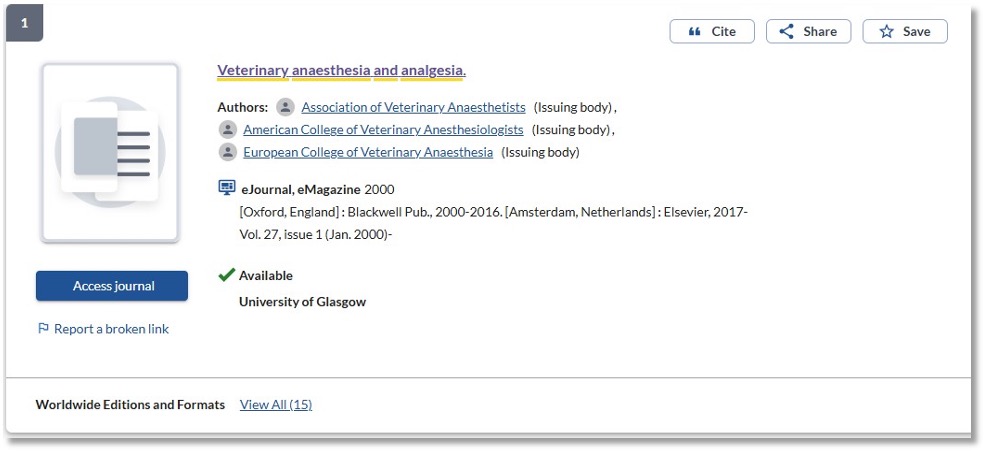
Save each resource you want to export. - At the top right of Library Search, select Saved Items.
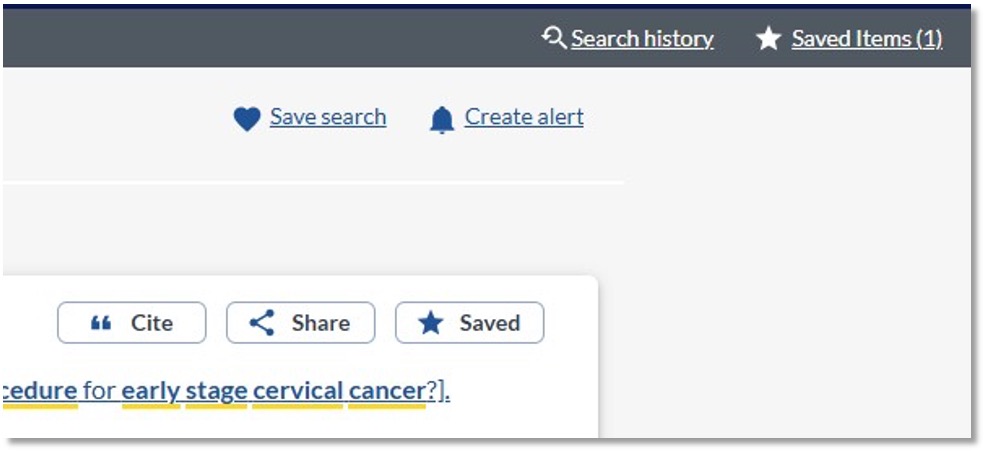
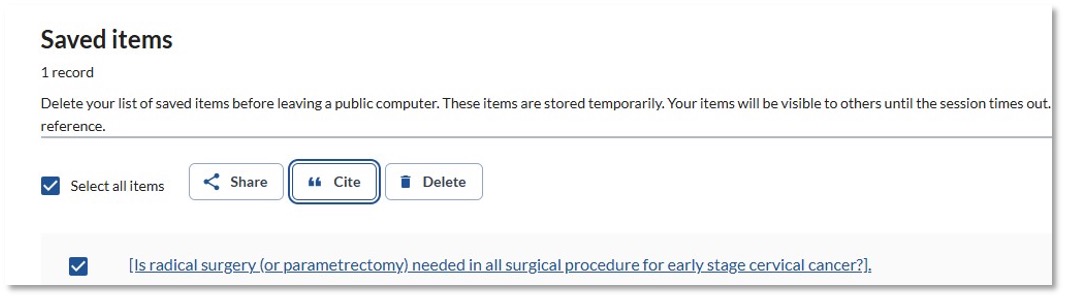
Open your Saved Items. - Select the references you want to export, then choose Cite.
Select the references, then choose Cite. - In the Cite panel, select Export to EndNote.
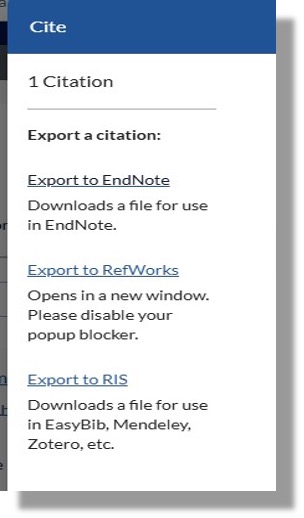
Choose Export to EndNote. - A .ris file will be downloaded. Take note of the file name and where it has been saved, for example your Downloads folder.
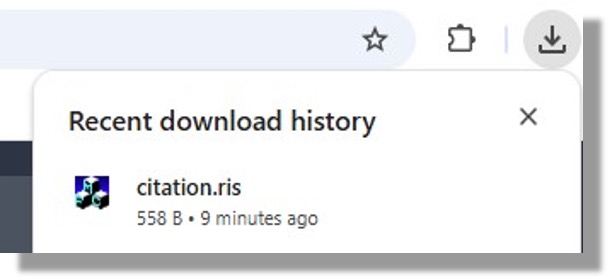
Make a note of where the RIS file has been saved.
Import the references into EndNote
- In EndNote, go to Collect and then select Import References.
- Select Choose file and find the .ris file you created in Library Search.
- Set Import Option to Citation.
- To keep references on the same topic together, select a group. You can also create a New group at this stage.
- Select Import.
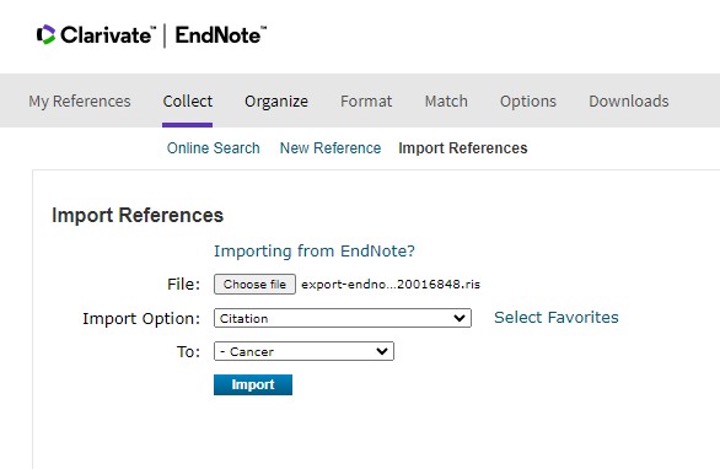
The Import References screen in EndNote Basic. - EndNote will display a message confirming that the import was successful.